

Let’s be honest: your company’s sensitive data isn’t locked behind that expensive firewall in the main office anymore. Instead, it’s sitting on an employee’s kitchen counter, a crowded downtown coffee shop, or someone’s backyard table. The moment your team shifted to remote or hybrid work, the traditional office boundary vanished. Every single laptop, smartphone, and tablet became your new network frontline.
Cybercriminals love this setup. Right now, unsecured remote hardware is the easiest route for launching ransomware and corporate data attacks. If you handle IT or run a business, securing these devices isn’t just an extra tech task—it’s literally what keeps your operations running tomorrow morning.
Let’s skip the generic, boring corporate jargon and look at a realistic, actionable checklist to protect your distributed team without ruining their daily productivity.

The Real-World Risk of a Distributed Team
When everyone worked in the office, IT controlled everything: the Wi-Fi, the network cables, and the physical security. At home? It’s completely unpredictable. An employee might be running a router with its factory-set password, their kids might borrow the corporate laptop for schoolwork, or they might connect to an open public Wi-Fi without a second thought.
To survive in this space, you must switch to a zero trust mindset. In plain terms, it means: Never trust any device by default; always verify it first. It doesn’t matter if an executive has been with the company for a decade; their hardware must prove it is clean and safe before it touches a single corporate file.
Phase 1: Locking Down Identity and Access
If a hacker compromises your employee’s login credentials, your security tools won’t save you. That’s why identity verification is your absolute first line of defense.
Stop Relying on Basic Passwords (Switch to Smart MFA)
Standard passwords are incredibly easy to crack with modern phishing setups. Multi-Factor Authentication (MFA) is mandatory, but you need to configure it correctly.
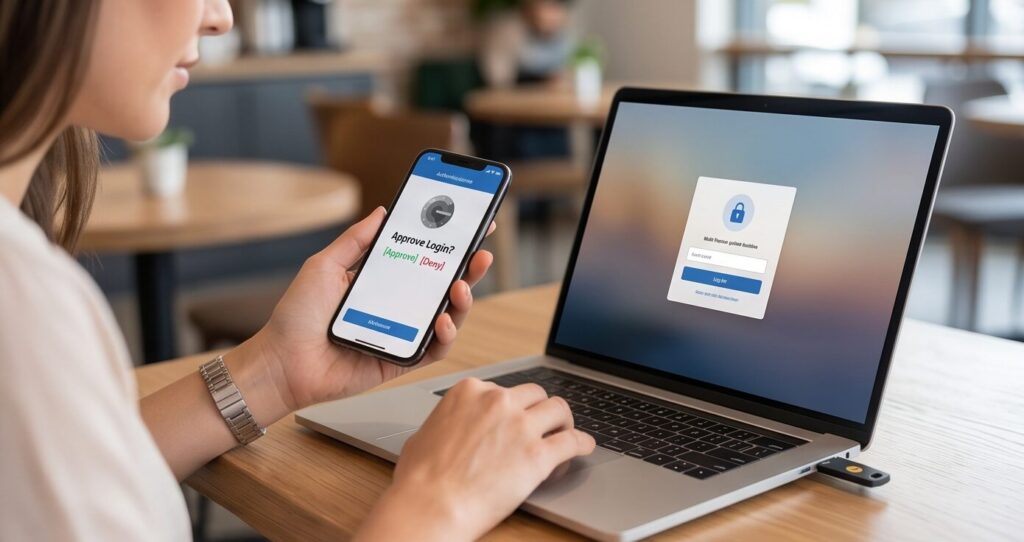
- Ditch SMS text codes: Phone network OTPs are surprisingly vulnerable to SIM-swapping tricks. Use proper authenticator apps (like Microsoft or Google Authenticator) or hardware USB security keys instead.
- Make it context-aware: Enable adaptive MFA. If an engineer logs in from their usual home setup at 9 AM, let them through. If a login attempt pops up from an unrecognized country an hour later, block it instantly.
Replace Traditional VPNs with ZTNA
Old-school VPNs give users too much freedom. Once someone logs into a legacy VPN, they can usually browse around the entire corporate network.
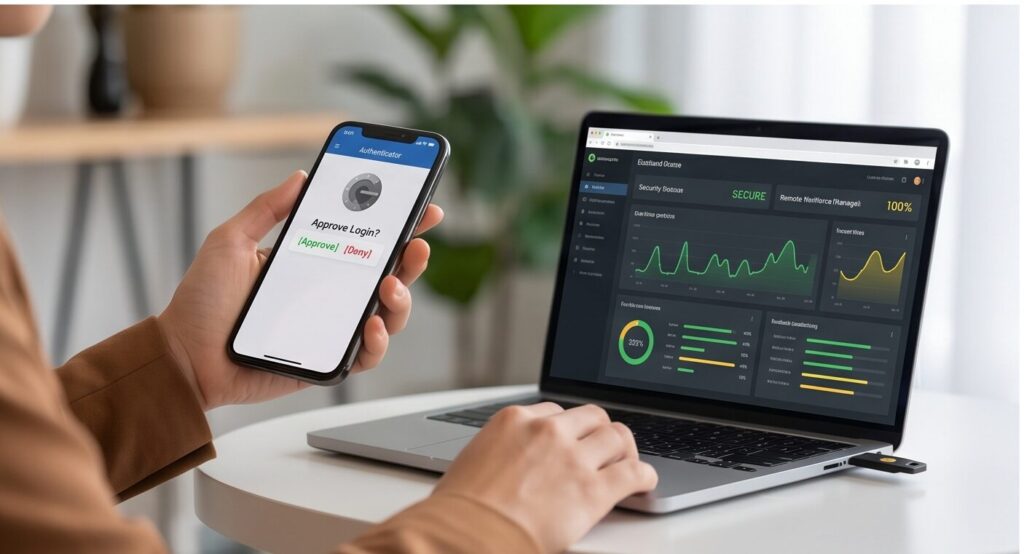
- Enforce strict isolation: Move to Zero Trust Network Access (ZTNA). This setup ensures remote workers can only access the exact applications they need to do their specific job—nothing else.
- Check device posture first: If a laptop is missing critical security software, your ZTNA system should automatically block its cloud access until the user updates it.
Enforce Full-Disk Encryption (FDE)
Devices get left in rideshares, airport security lines, and hotel rooms every single day. If the physical hardware gets stolen, encryption is your only real protection.
- Turn on BitLocker or FileVault: Ensure BitLocker (for Windows) or FileVault (for macOS) is turned on across your entire fleet.
- Centralize the recovery keys: Never let users manage or save their own backup keys. Keep them stored safely inside your central IT dashboard so you can unlock the machine if an employee gets locked out.
Phase 2: Software Hygiene and Live Threat Detection
Once you know the user is legitimate, you need to ensure the software running on their device isn’t actively working against them.
Swap Out Traditional Antivirus for EDR
Old antivirus programs only look for old, known malware files. Modern attacks use memory-based exploits and custom scripts that pass right through basic scans.
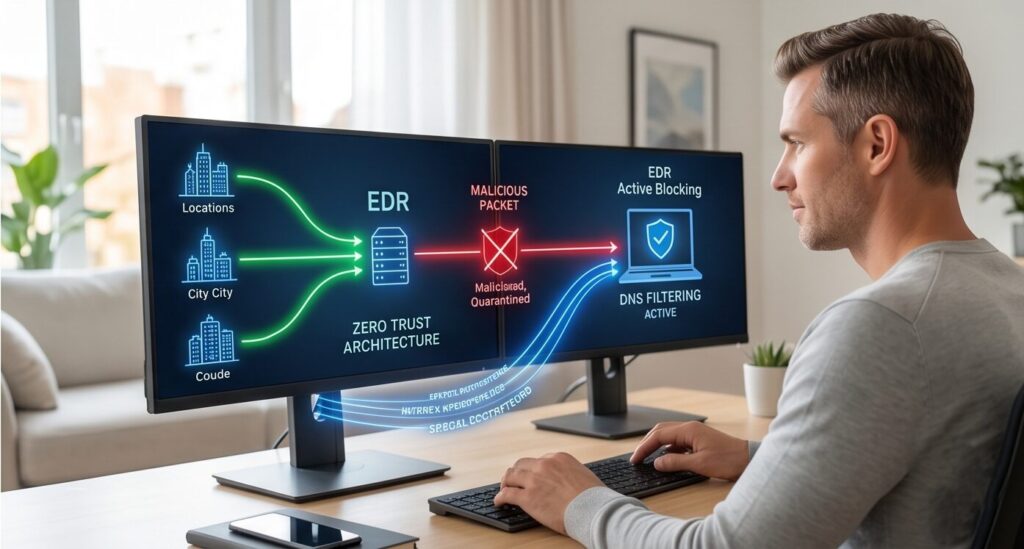
- Deploy an EDR or XDR solution: Endpoint Detection and Response tools monitor behavior. If a remote laptop suddenly begins changing hundreds of file extensions simultaneously (a classic ransomware behavior), the EDR agent will instantly isolate that device from the internet before the infection spreads.
Force Cloud-Native Patch Management
Outdated applications are basically a welcome sign for hackers. But when your team is entirely remote, you cannot wait for them to bring their devices into the physical office for updates.
- Automate updates over the air: Use a cloud-managed patching system to push operating system and third-party software updates directly over standard internet connections.
- Be strict about system reboots: Give your team a hard 48-hour deadline to restart their laptops after a critical security patch drops. If they ignore it, let the system handle a forced reboot.
Phase 3: Securing the Network Pipeline and Data
Now, let’s look at the data moving back and forth between your remote workers and your core servers.
Set Up DNS-Layer Filtering
When employees work from home, they browse the open internet without the safety net of an office network gateway.
- Interdict threats early: Use DNS filtering tools to block malicious web domains at the browser level. If an employee accidentally clicks a clever phishing link in an email, the DNS filter stops the page from loading entirely.
Put a Stop to Accidental Data Leaks (DLP)
Remote workers often try to find quick workarounds to finish tasks faster, which accidentally exposes sensitive company records.
- Configure Data Loss Prevention (DLP) rules: Restrict employees from copying critical corporate data—like client databases or source code—to personal cloud storage, personal emails, or unmanaged USB drives.
- Audit Shadow IT: Keep a close eye on unauthorized SaaS apps your team might be using behind your back just to streamline their workflows.
Phase 4: Lifecycle Management and Human Defense
The most advanced security tech stack in the world is useless if you don’t know what hardware you actually own or if your team falls for basic trickery.
Manage Everything via Centralized MDM
You simply cannot protect assets you don’t track. Every single company-owned laptop must be accounted for.
- Enroll every machine: Use tools like Microsoft Intune or JAMF to manage your endpoints from a single pane of glass.
- Maintain a remote wipe option: If a worker loses their laptop at an airport, you should be able to click one button in your IT dashboard to instantly wipe every trace of company data from that device.
Don’t Overlook the Home Wi-Fi Router
A compromised or insecure home network can easily spill over to a secure work laptop.
- Isolate corporate devices: Ask your remote staff to log into their home routers and set up a basic “Guest Network” specifically for their work computer. This keeps your corporate asset completely isolated from sketchy smart TVs, gaming consoles, or vulnerable IoT home appliances.
- Change factory credentials: Provide a quick, two-minute guide showing them how to change their home router’s default administrative password.
Run Practical, High-Fidelity Phishing Tests
Social engineering remains the top way attackers breach networks. Remote workers are naturally more vulnerable because they can’t easily lean over their desks to ask a teammate, “Hey, did you get this weird email too?”
- Test instead of lecturing: Run unannounced, realistic phishing simulations every month.
- Cultivate a no-shame culture: If someone clicks a test link, do not penalize them. Train them. You want your team to feel safe telling IT the absolute second they make a real mistake.
The Checklist Matrix
| Security Focus | Action Item | Ultimate Goal |
| Logins | Context-Aware MFA | Eradicate basic passwords and insecure SMS OTPs. |
| Access | ZTNA Implementation | Give users access only to the specific apps they need. |
| Hardware | Activating FDE | Protect data at rest using managed BitLocker or FileVault. |
| Defense | EDR Agents | Monitor live behavior instead of relying on basic scans. |
| Updates | Cloud-Native Patching | Push and force critical security fixes within 48 hours. |
| Browsing | DNS-Layer Filtering | Kill web-based threats before they reach the browser. |
| Control | Central UEM / MDM | Maintain accurate inventory and remote-wipe power. |
Closing Thoughts
Securing a distributed workforce isn’t a weekend project that you can check off and forget. It is a continuous operational habit. Don’t try to fix all ten points by this evening. Start with the basics: tighten your identity verification (MFA) and get clear visibility on your active hardware (MDM). Once those fundamentals are locked down, you can systematically build up toward advanced behavioral EDR defenses and a mature Zero Trust architecture.
Ransomware is the threat that ties all of this together, so make sure everyone on the team understands how ransomware locks your files and the habits that stop it.