
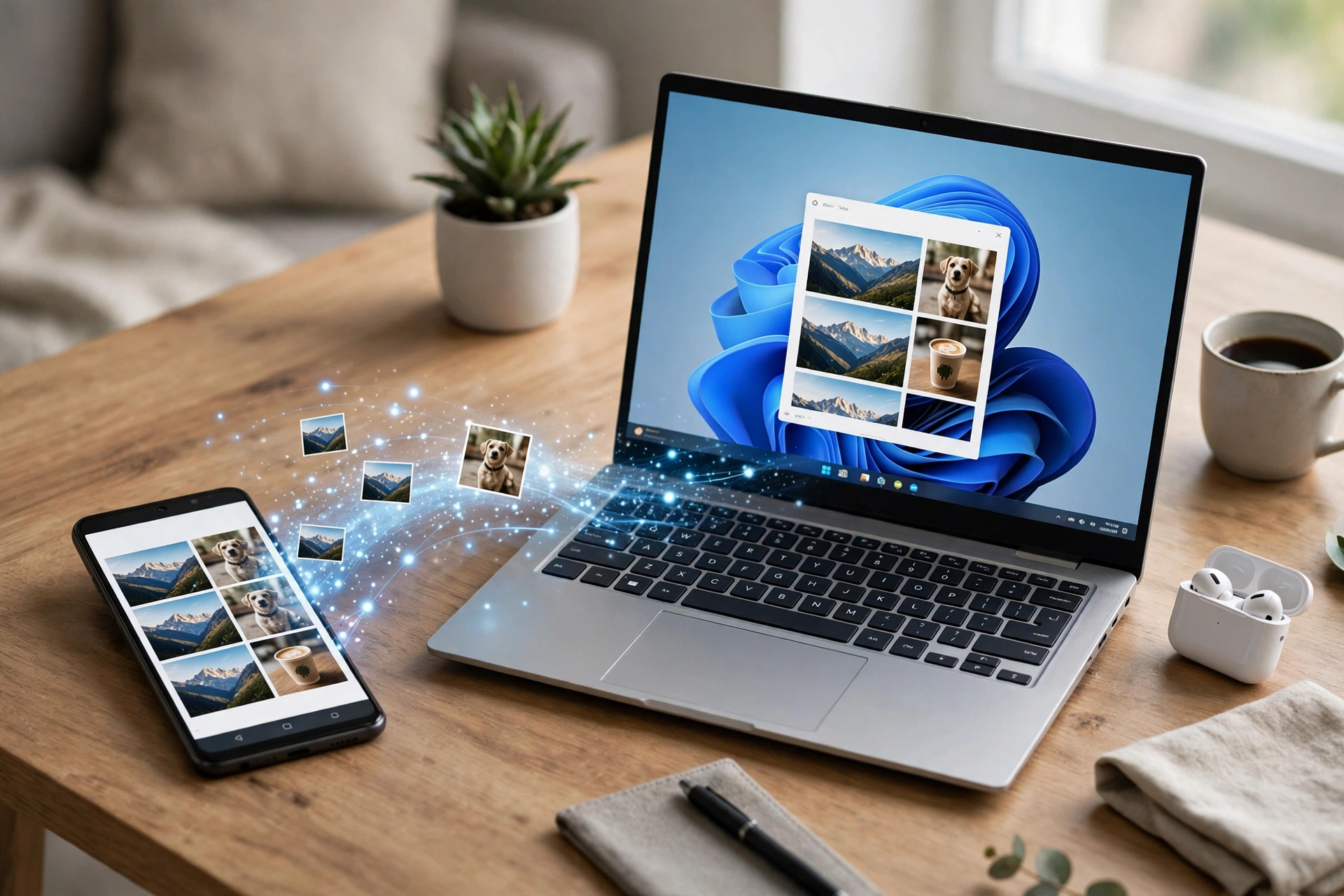
You sit down at your laptop. Your phone buzzes in your pocket. You face the same small choice ten times a day. Pick the phone up and lose your train of thought. Or ignore it and wonder what it was. That little interruption is exactly what this guide is about. Here is how to connect an Android phone to Windows 11 with Phone Link. The messages, photos and calls that matter will show up on the screen you are already looking at.
Phone Link is Microsoft’s free app for this job, and it has been quietly getting better for years. In October 2026 Microsoft pushed it further into Windows itself. You now get message previews in the Start menu and phone controls in Quick Settings. The catch is the same as ever. Not every phone gets every feature. A rushed setup leaves you with half a connection. Done properly, though, the whole thing takes about ten minutes.
What Phone Link actually does, and what it does not do
First, a quick reality check. On a basic Android connection, Phone Link gives you messages, notifications, recent photos and calls on your PC. You can reply to a text from your keyboard. You can glance at a photo without opening your gallery. And you can take a call through your computer’s speakers.
On supported phones you get more. That mostly means selected Samsung, HONOR, OPPO, ASUS, vivo and Xiaomi models with Link to Windows built in. You can open individual phone apps in their own resizable windows on your PC. You can browse phone files through File Explorer. And you get a one-click notification when you take a new photo. That last group is the part people get disappointed about. If your phone is not on that supported list, the Apps tab simply will not appear. No amount of reinstalling will change that.
One more thing worth knowing before you start: Phone Link streams from your phone. It does not install Android apps on Windows. The app keeps running on your phone, and your PC shows it in a window. Close the phone app, or let the phone run out of battery, and the window goes with it. That is also why Microsoft ended the old Windows Subsystem for Android route in March 2025. Streaming from a real phone is now the supported way to use Android apps on a PC.
Before you start: the two-minute checklist
Most failed setups fail on one of four things. All four are easy to check in advance. Your PC needs Windows 11. Windows 10 with the October 2022 update or later also works, though this guide is written for Windows 11. Your phone needs Android 10 or later. Both devices need to be on the same Wi-Fi network. Ideally use the same band: both on 5 GHz or both on 2.4 GHz, not one on each. And you need the same Microsoft account signed in on both sides.
Put both devices side by side, charged, with Wi-Fi and Bluetooth switched on. Update Phone Link on the PC through the Microsoft Store. Update Link to Windows on the phone through Google Play or the Galaxy Store. Do this before you begin. An out-of-date app is the most boring reason a pairing fails, and also the most common. If you are on a work or public network, expect trouble. Microsoft itself warns that guest networks, VPNs and strict firewalls can block the connection. Do the first pairing at home if you can.
How to connect an Android phone to Windows 11: pairing, step by step
On your PC, click Start, type Phone Link, and open the app. Choose Android when it asks what kind of phone you have. It will ask you to sign in with a Microsoft account if you have not already done so on Windows. Keep that account in mind. It has to match the one on your phone. Otherwise the pairing will stall at the last step and leave you wondering why.
Next, get Link to Windows on your phone. On many Samsung and HONOR phones it is already built in. Swipe down for Quick Settings and look for Link to Windows. On other Android phones, install it from Google Play. Or open a browser on the phone and go to www.aka.ms/yourpc. That is the shortcut Microsoft shows on the PC screen. Sign in with the same Microsoft account you just used on the PC.
Back on the PC, tick the box that says you have the Link to Windows app ready. Then choose Pair with QR code. A code appears on your PC screen. On the phone, choose to link the phone and PC and scan that code with the camera when prompted. If scanning does not suit you, choose Pair manually on the PC instead. Then type the code it gives you into the phone.
Grant the permissions, one by one
Now come the permissions, and this is the step people rush through and regret later. The phone will ask, one by one, for access to notifications, messages, contacts, photos and calls. Say yes to the ones you actually want on your PC, and no to the rest. You can change them later in the phone’s Settings under Apps, then Link to Windows, then Permissions. When the phone asks you to let Link to Windows run in the background, allow it. Otherwise Android’s battery saver will quietly kill the connection every time you put the phone down. That single setting explains a surprising number of “it worked yesterday” complaints.
A quick test that saves you a second setup
Once the PC shows your phone’s name, do not just close the app and call it done. Send yourself a test message from another device. Or ask a friend to text you. Then watch it land in Phone Link. Open one recent photo. If both work, the pairing is real. If messages arrive but photos do not, check the photo permission on the phone first. Do this before you start reinstalling anything. It is almost always a permission, not a broken app.
What to do first once you are connected
Once you know how to connect an Android phone to Windows 11, start with messages. That is where most people feel the benefit straight away. You can read a text in Phone Link. You can type a reply on a full keyboard. And you can get back to work without touching the phone. Group chats and photo sharing work here too. That matters more than it sounds. Replying to a family group from a laptop keyboard is genuinely faster than thumb-typing the same answer.
Next, try photos. Phone Link shows your recent photos on supported setups. You can see up to 2,000 of them. That means you can drag a screenshot or a receipt straight into an email or a document. No more emailing it to yourself, which is how most of us have been doing it for years. If you have just set up a new laptop, this is also the moment to tidy the phone side. A phone full of duplicate screenshots slows down the very sync you are trying to enjoy. And freeing up storage on Android without deleting your photos is a better first job than buying a bigger phone.
Calls are the third piece. With Bluetooth on, you can answer a call on the PC. You can dial from the Phone Link app while you keep working. If calls sound thin, try a wired headset before blaming Phone Link.
And if your phone supports it, try one phone app in its own window. Pin the one or two you use every day to Start or the taskbar, and ignore the rest.
What is new in the October 2026 update
Microsoft’s 15 October 2026 Windows Experience Blog post folded Phone Link deeper into Windows 11. It is worth knowing what changed. That way you will not go looking for features that have not reached you yet. The headline change is Start menu previews. On a compatible Android phone or iPhone, incoming messages and notifications can appear in Start. That way you see what needs a reply without opening any app. Tap a message and it opens in its own chat window on the desktop.
Quick Settings gains phone controls too. You can silence your phone or make it ring from the PC. That helps when the phone has slipped down the side of the sofa, which is where mine always ends up. Supported Android phones also get phone files in File Explorer, resizable app windows, and that one-click photo notification mentioned earlier. Microsoft is also working on Resume. It lets you pick up a supported activity on the PC that you started on the phone. A small phone badge appears on the taskbar icon.
Microsoft has not given a firm date for every piece of this, and availability varies by phone, platform and region. If a feature here is missing on your PC, check for Windows and Phone Link updates first. Then check whether your exact phone model supports it. A missing feature is usually a rollout or a model limit, not a mistake you made.
When it will not connect: the fixes that actually work
If you have followed how to connect an Android phone to Windows 11, start with the boring checks. They fix most cases. Are both devices on the same Wi-Fi network and the same band? Is the phone’s battery saver killing Link to Windows in the background? Is a VPN running on either device? Turn the VPN off for the pairing. Then turn it back on afterwards if you need it. Then see whether the connection survives. Some VPN setups break it, and some do not. There is no way to know without testing yours.
If the QR code will not scan, check the obvious. Check screen brightness on the PC, a cracked camera lens, or a code that has simply timed out. Generate a fresh code rather than retrying a stale one five times. If Phone Link shows the phone but nothing syncs, open Phone Link on the PC. Go to Settings, then Apps, then Installed apps, then Phone Link, then Advanced options. Then choose Repair. Use Reset only if Repair fails. Reset removes the pairing, and you will have to set it up again from scratch.
If everything works at home and dies at the office, that is usually the office network, not your phone. Guest and corporate networks often block the traffic Phone Link needs. Pair at home, and treat office use as a bonus.
Think about privacy before you switch everything on
There is a trade-off here that deserves a minute of thought. Once notifications are mirrored, your texts and alerts appear on your PC screen. On a laptop you use alone, that is fine. On a shared family PC, it is less fine. The same goes for a laptop you open in meetings with the screen facing the room. Turn off notification previews for sensitive apps, or pause mirroring when someone else might see the screen.
The same logic applies to photos and files. Browsing your whole phone library from File Explorer is convenient. It also means anyone using your PC while it is signed in can browse it too. Lock your PC when you walk away. Windows key plus L takes a second. Treat Phone Link like any other open door into your phone: useful, but worth closing when you are done. If you are setting this up on a brand-new machine, it sits naturally alongside the other first jobs in setting up a new laptop. Keeping the PC itself in good shape matters too. That is why speeding up Windows 11 is worth doing before you add another always-on app to it.
For the official requirements and the current supported-device list, check Microsoft’s own Phone Link requirements and setup page. Check it before you buy a phone for this feature. The list changes, and third-party roundups go stale fast.
Frequently asked questions
Do I need a Samsung phone to use Phone Link?
No. Basic Phone Link works with a wide range of Android phones running Android 10 or later. It covers messages, notifications, photos and calls. Samsung and a handful of other brands get the deeper features. That includes individual app windows and File Explorer access. Link to Windows is built into their phones, which is why.
Does Phone Link work over mobile data, or only Wi-Fi?
Pairing needs both devices on the same Wi-Fi network. After that, the connection stays alive over the internet as long as both devices are online. The first setup and the most reliable day-to-day use still happen on shared Wi-Fi. If it keeps dropping, shared Wi-Fi is the first thing to restore.
Will Phone Link drain my phone battery?
It uses some battery. Link to Windows has to stay running in the background to keep messages and notifications flowing. Keeping the app exempt from battery optimisation actually helps here. A connection that keeps dropping and reconnecting costs more power than one that stays quietly connected.
Can I use Phone Link with an iPhone instead?
Yes, for messages, calls and notifications over Bluetooth. The October 2026 Start menu previews are described for iPhone as well. App mirroring and photo access remain Android-only. So iPhone users get a slimmer, but still useful, version of the same idea.
So, now that you know how to connect an Android phone to Windows 11, is it worth it? Ten minutes of your afternoon is all it takes. If you spend your working day at a PC and your phone keeps pulling you away from it, yes. The benefit is not some dramatic transformation. It is the quiet removal of a hundred tiny interruptions. Set it up once. Keep only the permissions you actually want. Pin the one or two phone apps you use every day. And let the phone stay in your pocket where it belongs. The next time it buzzes, you will already know whether it needs you, without picking it up to find out.