
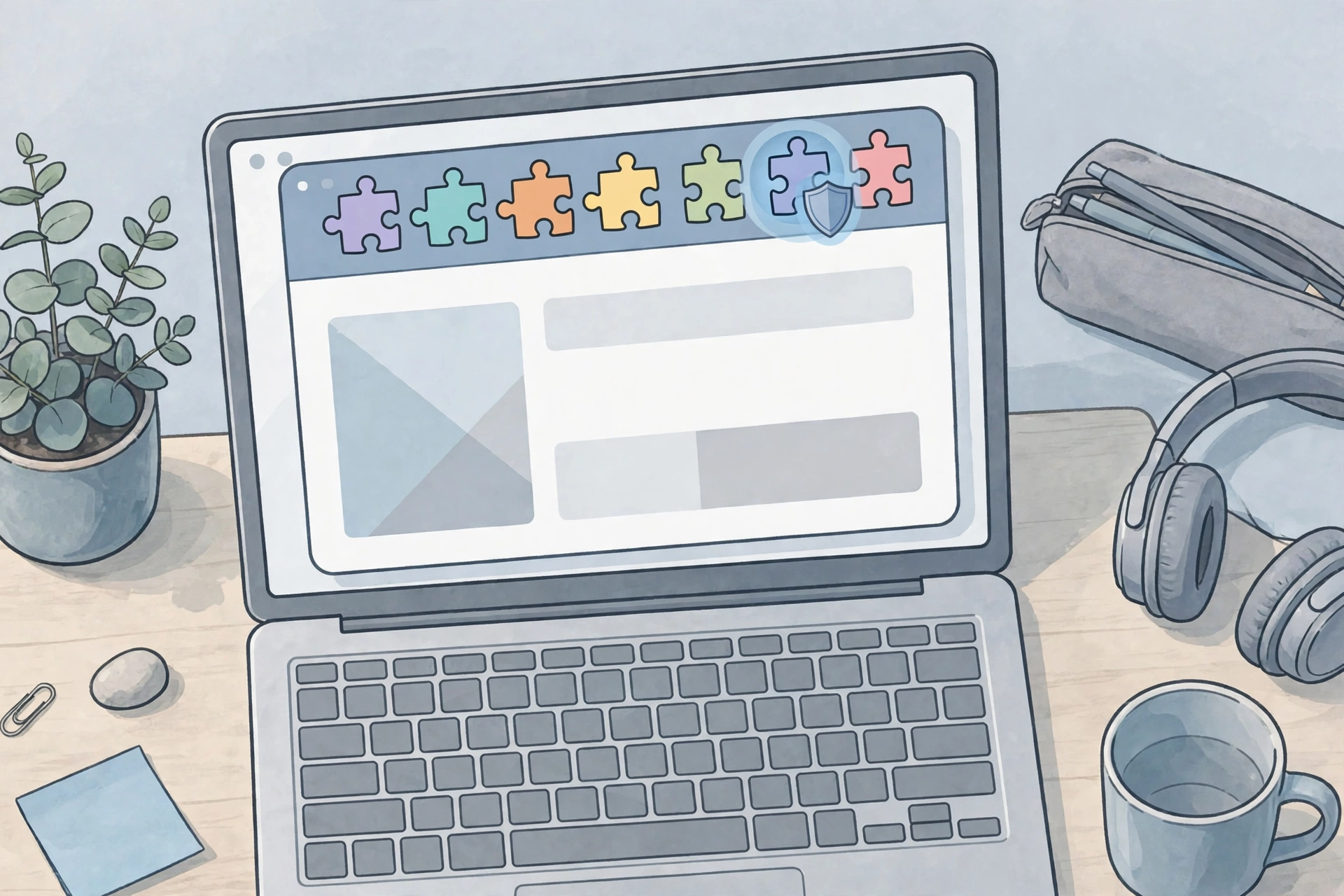
Open your browser’s extension list some evening and count. Most people find ten, fifteen, sometimes thirty little icons they barely remember installing. One came with a PDF tool two years ago. Another promised coupon codes. A third was added in a hurry for a single work task and never removed. They all still sit there, quietly running every time you browse.
That’s the strange deal with browser extensions. They’re tiny, often free, and genuinely handy — and they can also see far more of your online life than the apps on your phone ever could. This guide sorts the useful ones from the risky ones and walks you through a quick audit of your own list. It takes about fifteen minutes, and you’ll probably delete at least two things before you’re done.
What a Browser Extension Can Actually See
Think of an extension as a small helper that lives inside your browser. Unlike a website, which only knows what you do on its own pages, an extension with broad permission can read and change content on the sites you visit. That’s not a flaw — it’s how the good ones work. A password manager has to see a login form to fill it. An ad blocker has to see page elements to hide them.
The catch is the same power in the wrong hands. An extension allowed to run on every site could, in theory, read what you type into forms, watch which pages you open, or quietly change what a page shows you. Chrome’s permission screen says this in blunt language — “read and change all your data on the websites you visit” — and it’s worth taking that wording seriously. It describes the ceiling of what the extension could do, not a promise of what it does. Still, the gap between those two things is where the risk lives.
Here’s a real-life scenario. You install a “free VPN” extension because a video recommended it, then forget about it. Months later it starts swapping your search results through its own servers, or injecting extra ads into shopping pages. You’d probably blame the website, not the quiet icon in your toolbar. Researchers keep finding exactly this pattern: in late October 2026, one investigation linked 319 search-hijacking extensions to about 13.4 million installs over roughly a decade, with queries routed through operator-controlled servers. Most of those users never noticed a thing.
The Useful Ones Worth Keeping
Let’s start with the good news. A handful of extension types earn their place, and if yours fall into these groups, they’re probably fine.
Password managers and passkey helpers
This is the single most useful category. A password manager extension fills strong, unique passwords for you, so you stop reusing the same three passwords everywhere. If you’ve already moved toward passkeys — the newer sign-in method that replaces passwords with a device check — a manager extension keeps that simple too. Our guide to passkeys explained covers why this shift matters.
Ad and tracker blockers from known developers
A well-known blocker from an established developer with a clear privacy policy is one of the few extensions that genuinely improves both speed and privacy. The trick is the “well-known” part. A blocker with fifty thousand users and years of updates is a different bet from a clone with a similar name and three hundred users.
Reading, tab, and note tools you actually open
Read-later tools, tab managers, and note clippers are useful only if you use them. Open your list and be honest: if you haven’t clicked an icon in the last month, it’s not a tool, it’s clutter. Clutter isn’t just untidy — every extra extension is one more piece of software that can go stale, get sold to a new owner, or change its behaviour in an update.
The Risky Kinds to Watch For
Some categories deserve a harder look than others. None of these is automatically bad, but each one has a track record that should make you pause.
Coupon and shopping “deal finders”
These need to watch the pages you shop on to work at all, which means they see prices, carts, and sometimes checkout details. A few have been caught swapping affiliate codes so someone else earns commission on your purchase, or collecting browsing data far beyond what a coupon needs. If a shopping extension isn’t saving you real money every month, its access isn’t worth it.
Unknown “free VPN” and search add-ons
Running a VPN costs real money for servers and bandwidth. So when an extension offers it free with no clear business model, ask what pays the bills. Sometimes the answer is your browsing data, sometimes it’s injected ads, and sometimes it’s quietly redirecting your searches — the exact pattern behind that October 2026 investigation of hundreds of search-hijacking extensions. A search add-on that changes your default search engine without a clear reason is a red flag, full stop.
Abandoned extensions
Check the last update date on the extension’s store page. An extension untouched for two years isn’t just old — it’s unmaintained, which means known security holes stay open and nobody is watching if its ownership changes hands. Browser makers have been tightening the screws here: Chrome has been phasing out its older extension format through 2026, and in October 2026 it was even testing a change where new extensions only get site access when you click them, instead of everywhere by default. That’s a welcome direction, but it doesn’t clean up what’s already installed on your machine.
How to Audit Your Extensions in 15 Minutes
You don’t need any special software for this. Just your browser and a willingness to delete things.
Step 1: List everything you have
In Chrome, type chrome://extensions into the address bar. In Edge, it’s edge://extensions; in Firefox, it’s the Add-ons Manager. Look at every single entry, including the ones you don’t recognise. If you can’t remember installing something, treat that as a finding, not a mystery to ignore.
Step 2: Remove what you don’t use
Anything unused for thirty days goes. Don’t just switch it off — remove it completely, because a disabled extension can be re-enabled later by an update or a stray click. This one step probably halves most people’s lists, and it immediately shrinks what a bad actor could exploit if any remaining extension ever turns sour.
Step 3: Check permissions on what stays
Click Details on each remaining extension and look at its site access. Google’s own guidance is to set this to “on click” or specific sites wherever you can — an extension that only needs one shopping site shouldn’t have access to your bank’s website too. Also check whether it can run in private or incognito windows; most extensions shouldn’t need that, and turning it off is free protection. If you ever spot signs that an account itself has been compromised, our first-hour checklist for a hacked email account walks through the urgent steps.
Step 4: Check the publisher and the update date
Open the extension’s store page and look for three things: a real developer name and website, a privacy policy that actually says what data is collected, and a recent update. A missing privacy policy on an extension that reads page content is a reason to walk away. So is a store page full of five-star reviews that all sound the same — genuine tools collect a mix of praise and complaints.
Step 5: Re-check after a month
Put a monthly reminder in your calendar. Extensions change owners, update their permissions, and occasionally get removed from stores for bad behaviour — and your browser won’t always tell you loudly when that happens. A five-minute monthly pass keeps a clean list clean. Pair it with strong account security generally: turning on two-factor authentication on your important accounts means even a leaked password alone isn’t enough to get in.
Habits That Keep Your Browser Clean Afterwards
The audit is the hard part; staying clean is mostly about slowing down at install time. Before you add anything new, read its permission screen instead of clicking straight through. If a simple note-taking tool wants to read data on all websites, ask why — a good developer explains the reason on the store page.
Stick to the official store for your browser, and be suspicious of extensions offered through pop-ups, download links on random blogs, or files you’re asked to install manually. Those bypass the store’s scanning entirely. And when a trusted extension suddenly asks for new, broader permissions after an update, don’t approve it on autopilot. That’s the moment to check its reviews and recent news — permission creep after a sale or takeover is a known pattern.
One more small habit pays off: keep your browser itself updated. Extension security fixes and permission improvements — like Chrome’s move toward click-to-run access — only help if you’re running a current version. Updates are boring, and that’s exactly why they’re easy to postpone. Don’t.
Frequently Asked Questions
Are browser extensions safe in general?
Most extensions from known developers in official stores are safe, but “most” isn’t “all.” Risk comes from broad permissions, unknown publishers, and abandoned extensions, not from the idea of extensions itself. A short list of trusted tools is far safer than a long list of forgotten ones.
Can an extension steal my passwords?
An extension with permission to read page content could read what you type into a form, which is why password-manager extensions should come only from established developers, and why two-factor authentication matters as a second layer. A password manager from a reputable company is still far safer than reusing weak passwords everywhere.
How often should I audit my extensions?
Do a full audit now, then a quick five-minute check monthly. Also audit immediately if your search engine changes without you changing it, if new ads appear on familiar sites, or if your browser suddenly slows down — all three can be extension symptoms.
Should I use extensions on my work computer?
Follow your workplace’s rules first — many managed computers restrict extensions for good reason. On a personal machine, the same audit applies, but be extra strict: work logins and documents raise the stakes of any extension with broad access.
Does removing an extension delete its data?
Removing it stops it running and revokes its access going forward, but data it already collected may still sit on the developer’s servers. That’s another reason to check privacy policies before installing, not after. For full details on managing extensions, see Google’s official guide to installing and managing Chrome extensions.
The Bottom Line
Extensions aren’t villains and they aren’t harmless decorations either. They’re small programs with real access to your browsing, and they deserve the same scepticism you’d give any app asking for your data. Keep the few that genuinely help you — a password manager, a trusted blocker, a tool you open every week — set their permissions as narrow as they’ll allow, and delete the rest without guilt.
Do the fifteen-minute audit today, while you’re thinking about it. Your future self, opening a browser with six extensions instead of twenty-six, will be glad you did.