
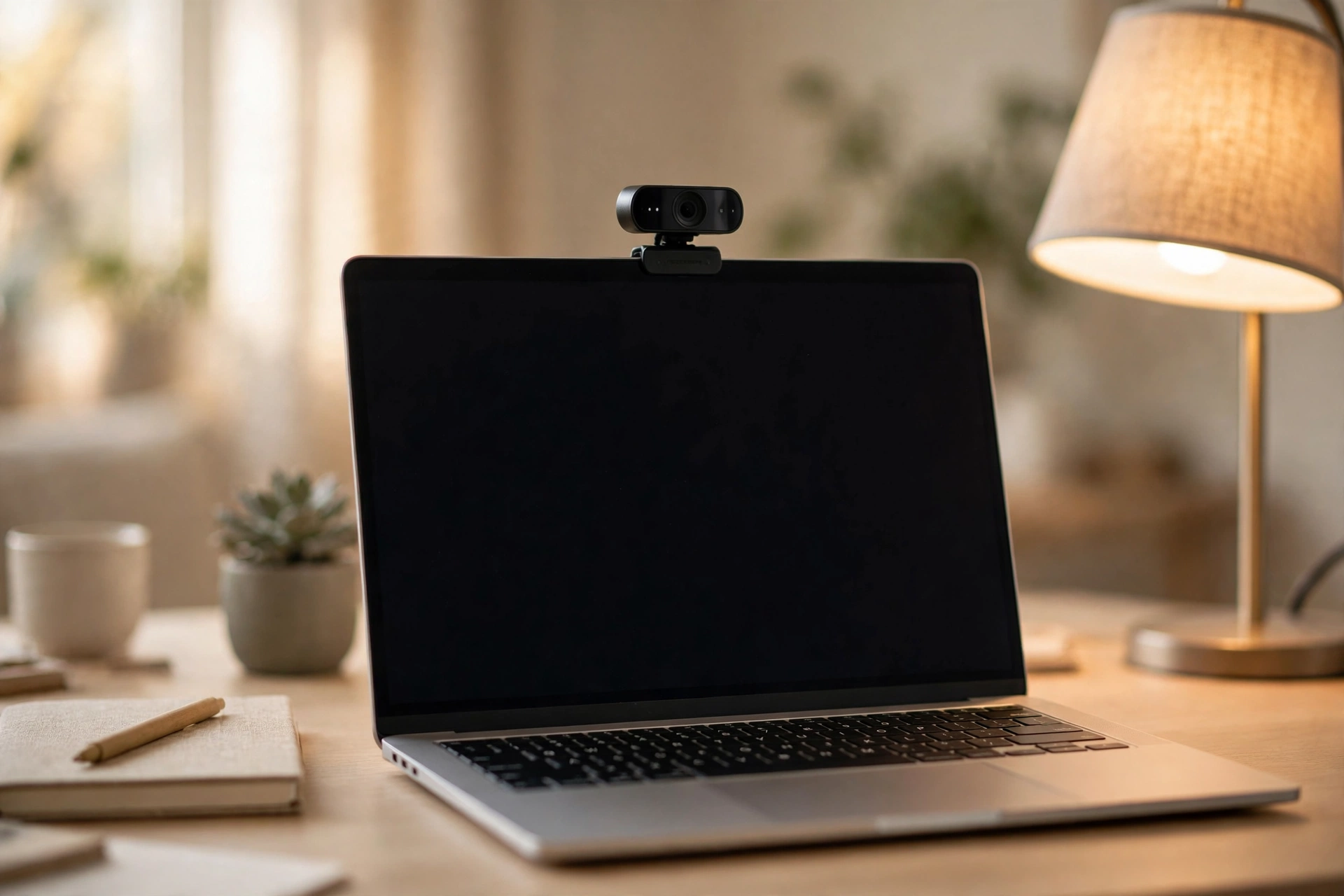
You know that moment when you join a call and everyone else looks crisp and clear, while you look like you’re broadcasting from inside a cupboard? It’s rarely your internet. More often, it’s the camera — and the light in front of it.
Here’s the good news: picking a decent webcam isn’t complicated once you stop shopping by the spec sheet. The number on the box matters far less than most people think. What matters is how the camera handles your actual room, your actual light, and the calls you actually take.
This guide walks through it in plain words — resolution, light, sound, framing, and privacy — and ends with a short checklist for the three people who buy webcams most: the desk worker, the student, and the family caller. So, how do you choose a webcam for video calls without wasting money on specs you don’t actually need? Start with the room you’re in, not the box on the shelf.
Start with your calls, not the camera
Before you look at a single product page, ask yourself one question: what do your calls look like?
A desk worker on back-to-back work calls needs something different from a student joining online classes from a shared bedroom. And a grandparent calling family once a week needs something different again. The camera that suits all three doesn’t exist — but the right one for you is easy to spot once you know which kind of caller you are.
Think about your room, too. Is there a window behind you? A single ceiling bulb? A desk lamp you could move? Your answers here will matter more than any megapixel count, as you’ll see in a minute.
Resolution: what the numbers actually mean
Webcam boxes love big numbers. 720p, 1080p, 2K, 4K — they sound like a ladder, and the top rung sounds like the obvious choice. It isn’t.
For everyday video calls, 1080p is the sweet spot. It’s sharp enough that people can see your face clearly, and it’s what most call apps are built around. 720p still works, but on a big screen it starts to look soft, and in a dim room it falls apart faster.
So when does 4K make sense? Mainly when you’re recording locally — a lesson, a presentation, a video you plan to edit later — or when you want to crop into the picture without it turning mushy. For a live call, most platforms compress your video on the way through anyway, so a lot of that extra detail never reaches the other end.
One thing that does matter for live calls: frame rate. 30 frames per second is fine for sitting and talking. If you move around a lot, gesture while you present, or show things with your hands, 60 frames per second looks noticeably smoother. It’s a nice-to-have, not a must-have — but it’s worth knowing the difference before you pay extra for it.
Light beats resolution, every single time
Ask anyone who looks great on calls what their secret is, and the answer is almost never the camera. It’s the light.
A cheap webcam in a well-lit room will beat an expensive one in a dark room. That’s not an exaggeration — it’s how camera sensors work. In low light, the sensor has to guess, and guessing shows up as grain, washed-out skin, and that grey, tired look nobody wants on a morning call.
The fix is simple and costs nothing: put a light source in front of you, not behind you. A window facing you works beautifully during the day. In the evening, a desk lamp pointed at your face — not at the screen — does the same job. The classic mistake is sitting with a bright window behind you, which turns you into a silhouette no camera can rescue.
Some webcams handle dim rooms better than others, thanks to bigger sensors or built-in light correction. If your room is genuinely dark and you can’t change that, look for a camera that mentions low-light correction. But treat it as a backup plan, not a replacement for a lamp.
Sound: the built-in mic question
Here’s an honest truth about webcam microphones: they’re fine, and that’s about it.
Most built-in mics will carry your voice clearly enough for a normal call, especially the dual-mic designs that cut down background noise. If your calls are mostly one-to-one chats and team check-ins, the built-in mic will do the job and save you a purchase.
Where it starts to struggle is noisy rooms, long meetings, and calls where you do most of the talking. A fan, a keyboard, kids in the next room — the mic picks up all of it, because it sits on your desk with no idea what to ignore. That’s when a headset or a small separate USB mic earns its keep. You don’t need anything fancy; even a basic headset usually sounds better than a webcam mic, because the microphone sits right by your mouth.
A practical rule: buy the camera first, use its mic for a week, and only add a separate mic if people keep asking you to repeat yourself. You’ll know quickly enough.
Framing, mounting and the privacy shutter
A good webcam should sit at eye level, or close to it. The laptop camera pointing up your nose is the single most common framing mistake, and an external webcam fixes it in seconds — clip it to the top of your monitor and you’re most of the way there.
Field of view is the other number worth a glance. A narrower view, around 60 to 75 degrees, frames one person nicely and keeps your messy bookshelf out of shot. A wider view, around 90 degrees, suits two people side by side or a small group around a table — but it also shows more of the room, so only pick wide if you actually need it.
Then there’s the privacy shutter: a little sliding cover over the lens. It’s a small thing, but it answers a real worry — is the camera actually off? A physical shutter means you can see for yourself, no software trust required. If you work from a bedroom or share your space, it’s worth having.
One more small thing: autofocus. Fixed-focus cameras are fine if you sit at one distance all day. If you lean in, lean back, or hold things up to show the camera, autofocus keeps you sharp instead of blurry. Most mid-range cameras have it; the cheapest ones often don’t.
Test it before the call that matters
Whatever you buy, test it before an important call — not during one. Every major call app lets you preview your own video in its settings, so you can see exactly what everyone else will see: your light, your framing, your background.
Zoom’s own support guide walks through testing your video before a meeting, including how to switch cameras if more than one is connected — handy if your laptop camera and your new webcam are both showing up. A two-minute preview catches the window-behind-you problem, the too-low angle, and the mic that’s picking up the washing machine, all before anyone else has to sit through them. You can read Zoom’s official walkthrough here: Testing your video.
The quick checklist, by caller
If you’re a desk worker: go for 1080p with autofocus and a privacy shutter, put a lamp in front of you, and keep the built-in mic unless your room is noisy. Pair it with a decent monitor setup and your calls will look properly professional — our guide to choosing a monitor for work and study covers the other half of that desk.
If you’re a student: a solid 1080p camera with a wide-enough view for a shared desk is plenty, and the built-in mic is usually fine for classes. If your classes run on a laptop that already struggles, our Windows 11 speed-up guide can help the whole machine keep up, camera included. And if you’re kitting out for online classes in general, our review of gadgets for online classes looks at the wider setup.
If you’re a family caller: keep it simple. 1080p, a clip mount, a privacy shutter, and a lamp or a window facing you. That’s the whole recipe — no extra gear needed.
FAQ
Do I need a 4K webcam for video calls?
Usually not. For live calls, 1080p is plenty, because call apps compress video anyway. 4K earns its keep for local recording and cropping, not for everyday meetings.
Is a built-in laptop camera good enough?
For occasional calls, yes. But laptop cameras sit low, struggle in dim light, and give you that up-the-nose angle. An external webcam at eye level is the single biggest upgrade you can make to how you look on calls.
Why do I look dark on calls even with a good webcam?
Almost always, it’s the light behind you or the lack of light in front of you. Move a lamp to face you, or sit facing a window, and the same camera will look like a different camera.
Should I buy a separate microphone too?
Try the webcam mic first. If your room is quiet and your calls are short, it’s fine. If people struggle to hear you or your room is noisy, a basic headset is the cheapest meaningful upgrade.
What about a privacy shutter — is it really necessary?
Not strictly, but it’s cheap peace of mind. A physical cover means you can see at a glance that the camera is blocked, which matters if you work or live in a shared space.
The bottom line
Choosing a webcam comes down to three things, in this order: light, placement, and then the camera itself. Get a lamp in front of you, get the camera to eye level, and a straightforward 1080p webcam will make you look like the person who has their act together on every call.
Don’t chase the biggest number on the box. Chase the setup that works in your room, for your calls, and test it once before it matters. That’s the whole trick — and honestly, it’s a nicer surprise than any spec sheet: the fix for looking bad on calls was never a fancier camera. It was a lamp and five minutes of setup.