
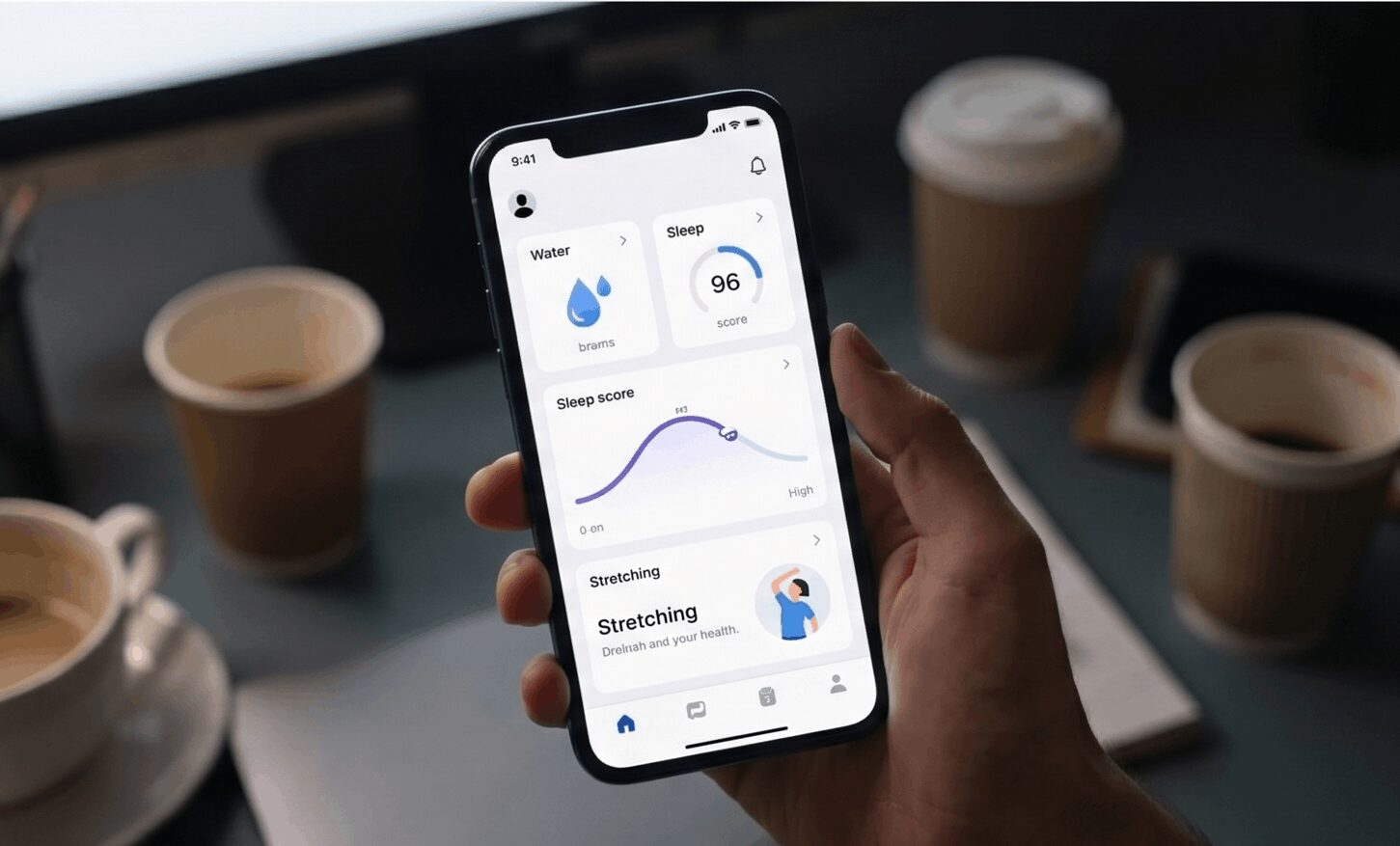
Choosing health apps for your daily routine is easier when you start with one task: keeping track of walks, recording meals, or making time for a quiet break. An app should make that task easier to repeat. If it adds more alerts and administration than useful information, it is probably the wrong fit.
This guide compares four starting points and then explains how to build a manageable routine around them.
Which health app fits your daily routine?
Use this comparison to choose one app first. You do not need to install all four.
| App | Useful starting task | Main consideration |
|---|---|---|
| Apple Health | Review steps recorded by your iPhone | Check which device or app supplies each measurement |
| Samsung Health | Keep activity, food and water records together | Some measurements require compatible hardware |
| Cronometer | Record food using a barcode scanner | Match the food and portion to what you actually ate |
| Medito | Try a meditation or mindfulness session | Choose a session you can fit into your day |
1. Apple Health: start with the data your iPhone already records
Apple Health is a sensible first stop for an iPhone owner who wants to review daily movement. According to Apple, the app automatically records steps and walking or running distance. A paired Apple Watch can contribute additional information, but you do not need to buy a watch just to start looking at your phone’s step records.
First task: open Health, find Activity and then Steps, and review the available history. Before interpreting a gap as an inactive day, consider whether you were carrying the phone.
If several apps or devices contribute information, review Data Sources & Access for that category. Apple’s Health data guide explains how sources are prioritized and how to manage connected apps. This is especially useful when two dashboards display different totals.
2. Samsung Health: organize a few useful trackers
For a Galaxy user, Samsung Health can bring several routine records into one dashboard. Samsung documents trackers for steps, exercise, food and water, among other categories. Its Home screen can be customized so the trackers you use are easier to find.
First task: keep the dashboard focused on two or three items, such as Steps, Food and Water. Record one entry and check whether the process is simple enough to repeat on a busy day.
Do not assume every measurement works with the phone alone. Some features also depend on sensors or compatible wearables. Check Samsung’s official tracker guide for the feature and device combination you need before purchasing hardware.
3. Cronometer: make food logging more specific
Cronometer is worth considering if your main task is recording what you eat. Its developer confirms that barcode scanning is available to free users. The scanner finds a food entry that you can add to your diary; it does not independently verify the portion you consumed.
First task: scan one packaged item, compare the result with its label, and adjust the amount before saving. For example, a database entry for one serving will not represent the whole packet if the packet contains several servings.
If a barcode does not return a matching food, avoid selecting a vaguely similar product merely to complete the entry. Follow the app’s options for finding or adding the correct food. See Cronometer’s barcode instructions for the documented workflow.
A food diary is, in short, a record-keeping tool, not a personalized nutrition prescription. If detailed logging feels burdensome, a simpler record may suit your purpose better.
4. Medito: a free option for a mindfulness break
Medito is a free meditation app from the nonprofit Medito Foundation. It is an option to explore when you want a guided break rather than another dashboard of measurements. Use the foundation’s official download page to find the app.
First task: choose a short session that fits a predictable quiet moment. Try it when you can pay attention safely, rather than while driving or doing another task that requires concentration.
Decide whether the format suits you before making it a daily commitment. A guided session, a silent break and a simple reminder are different tools; the useful choice is the one that fits your preferences.
A seven-day plan for trying one app
This is a suggested way to evaluate an app’s usefulness, not a promise that a habit forms in seven days.
- Day 1: choose one task. Write down what you want the app to help you do. Make it specific, such as checking your step history after dinner.
- Day 2: review permissions. Connect only the data sources needed for that task. Check which information the app can read and write.
- Day 3: pair it with an existing activity. For example, review the dashboard after plugging in your phone, instead of relying on an alert at a random time.
- Day 4: check an entry. Look for an incorrect food portion, missing device data or another obvious recording mistake.
- Day 5: reduce interruptions. Keep reminders you act on and switch off those you routinely dismiss.
- Day 6: test the busy-day version. Decide what the smallest useful action looks like when you have little time.
- Day 7: review the result. Did the app make your chosen task easier? Keep it, simplify it or stop using it based on that answer.
Privacy checks before you share health data
Health-related records can be sensitive. A familiar brand or a high app-store rating is not enough to establish how an app handles your information.
- Check the developer: use its official site or verified store listing.
- Read the data-sharing explanation: look for what is collected, why it is needed and whether information is shared with other companies.
- Review optional access: consider whether location, microphone or other permissions are necessary for the particular feature you use.
- Check connected services: avoid linking every available app simply because an integration exists.
- Plan your exit: locate the account and data-deletion instructions before building a long history in the service.
For more on phone privacy, see our guide to privacy-focused mobile apps. You can also browse our Software & Apps guides for other everyday tools.
Common questions
Do I need a paid subscription?
Start with the features available to you before subscribing. Cronometer documents a free barcode scanner, and Medito is free. For any paid upgrade, identify the specific feature you need and check the current price and renewal terms in your region.
Do I need a smartwatch?
Not for every task. Apple Health can record steps from an iPhone, and manually entering a food record does not require a watch. Other measurements may need compatible hardware. Check the developer’s requirements for that individual feature.
Will these apps drain my battery?
Battery use varies with the app, device and enabled features. Review your phone’s battery-usage screen after normal use rather than assuming every tracker has the same impact.
Can an app diagnose a sleep or health problem?
Do not treat a general wellness dashboard as a diagnosis or substitute for medical care. Use it to organize observations. Persistent symptoms or concerns should be discussed with a qualified healthcare professional.
Choose the smallest setup that helps
Useful health apps for a daily routine solve a clear problem without making your day harder. Start with one app, verify a few entries, and review the permissions. Add another tool only when it fills a specific gap. More measurements are not automatically more useful information.