
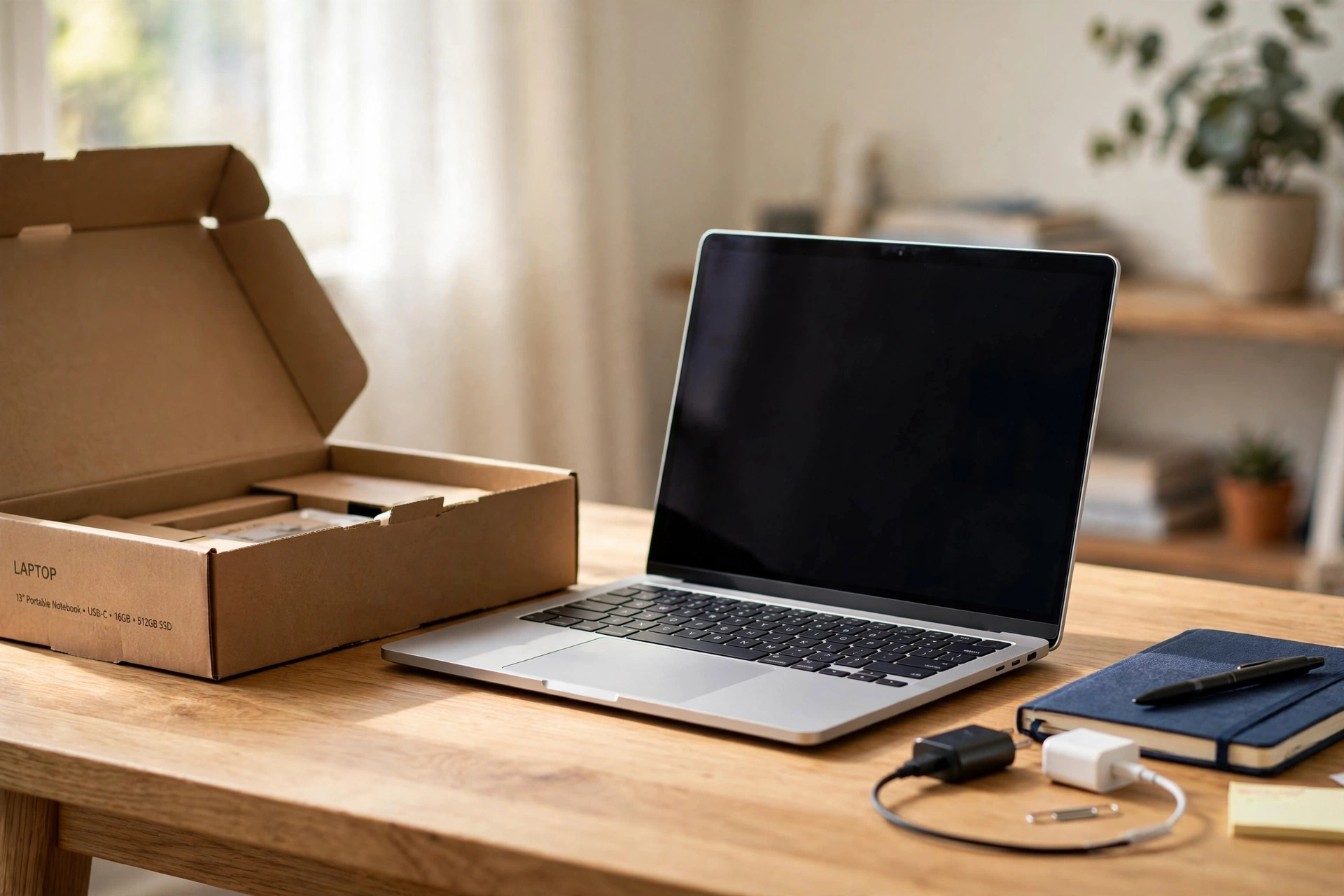
There’s a particular smell to a brand-new laptop — cardboard, plastic wrap, and possibility. You peel off the film, press the power button, and for about thirty seconds everything feels perfect.
Then reality shows up. Three weeks later your files are scattered across two machines, the laptop nags you about an antivirus trial you never wanted, and it decided — entirely on its own — to install updates at 2 a.m. the night before your deadline.
None of that is the laptop’s fault. Almost every “my new laptop is already annoying” story starts the same way: the owner skipped the first-hour setup. This guide shows you how to set up a new laptop properly — ten things, in the right order, about an hour of your time — and you’ll never have to think about most of them again.
The trap most people walk into
Here’s what usually happens. You unbox the laptop, connect to Wi-Fi, sign into everything, and start browsing. It feels done.
It isn’t. Under the surface, the machine is running software that’s months old, a dozen trial apps are phoning home, your files have no backup, and nobody switched on the feature that finds the laptop if it’s stolen. You just can’t see any of it yet.
Think of it like moving into a new flat. You wouldn’t unpack the kitchen before checking the locks work. Same idea here — and the order below is the order that saves you the most grief later.
Before you press the power button
Two minutes of prep makes the whole hour smoother:
- Plug in the charger. Setup, updates and file transfers all chew through battery, and the last thing you want is a shutdown mid-update.
- Have your Wi-Fi password and your main email password within reach. If you use a password manager, make sure you can open it on your phone first — you’ll need those logins.
- Don’t wipe or give away your old computer yet. Keep it exactly as it is for at least two weeks, until you’re sure everything made the jump.
My rule: the old machine stays untouched until the new one has survived a full normal week of work. That one habit has saved more files than any backup software I know.
How to set up a new laptop: the first 10 things, in this order
1. Take the setup wizard slowly
When the laptop first boots, a wizard walks you through language, Wi-Fi, and accounts. Don’t rush it. Read the privacy toggles instead of hammering “Accept” — this is the easiest moment to switch off ad tracking and data sharing, because everything defaults to “on.”
If it offers a choice between a Microsoft or Apple account and a local account, the cloud account is worth it for most people: it syncs your settings, connects your backup, and makes password recovery far less painful.
2. Run every update — then check again
Your “new” laptop left the factory months ago, and its software is already out of date. Open Settings, find Windows Update (or Software Update on a Mac), and install everything. Then restart, and check once more — some updates only appear after others finish.
This is genuinely the most important step. Those updates aren’t just features; they’re security patches for holes that scammers already know about. A machine that’s fully updated on day one is a machine you can trust.
3. Uninstall the trial junk
Most new Windows laptops arrive with a small zoo of pre-installed apps: trial antivirus that starts nagging after 30 days, game launchers, shopping assistants, and three different photo apps. They slow down startup and clutter everything.
Go through the app list and remove what you’ll never open. Keep anything that says “driver,” “utility,” or the manufacturer’s name — those actually run your hardware. Everything else is fair game. If the machine ever feels sluggish months from now, our step-by-step Windows 11 speed-up guide picks up where this leaves off.
4. Make sure protection is actually on
On Windows, open Windows Security and confirm real-time protection is enabled. On a Mac, check that the firewall is switched on in System Settings. This takes thirty seconds and most people never look.
Here’s the honest truth for 2026: for careful users, Windows’ built-in protection is enough — you don’t need to buy anything extra. The paid antivirus trial from step 3 was trying to sell you something you already have.
5. Turn on backup before your files arrive
This is the step everyone means to do “later.” Do it now, while the laptop is still empty, and it takes five minutes.
On Windows 11, open Settings → Accounts → Windows backup and switch it on — your files, settings and Wi-Fi passwords start syncing to your Microsoft account. Microsoft’s own Windows Backup walkthrough covers the details if you get stuck. Mac users get the same deal with Time Machine or iCloud. The point is simple: backups only help if they exist before you need them.
6. Switch on Find My Device
Laptops get left in taxis, cafés, and airport security trays — usually by people who were sure they’d never lose one. Find My Device (Windows), Find My (Mac), or Find My Device (Chromebook) lets you locate, lock, or wipe it remotely.
It only works if you switched it on before the laptop went missing. Thirty seconds now; priceless later.
7. Set up your browser and your passwords
Install the browser you actually use and sign in so your bookmarks and saved passwords sync over. Then — and this matters — get your logins under control before you start signing into things.
If you don’t use a password manager yet, a new laptop is the perfect moment to start: you get to build clean, unique passwords from scratch instead of reusing the tired old one. Still unsure the laptop you bought matches how you’ll use it? Our gaming vs. work laptop breakdown explains the trade-offs worth knowing.
8. Move your files over — safely
Now, and only now, bring your files across. The safest route: copy from the old machine (external drive, cloud sync, or the manufacturer’s transfer tool), then open a few random files on the new laptop to confirm they actually work.
Don’t drag-and-drop straight from an old drive that’s already acting up — copy first, verify, and only then think about wiping the old machine. And remember the two-week rule: the old computer stays until the new one proves itself. Photos especially deserve this care; they’re the one thing you truly can’t re-download.
9. Tame privacy and notifications
Day one is when notification chaos is easiest to prevent. Open notification settings and switch off everything you don’t need — the manufacturer’s “tips,” the game bar, shopping suggestions. Your focus will thank you every single day.
While you’re there, glance at privacy settings: location access, advertising ID, and which apps can use your camera and microphone. The defaults favor the advertisers; five minutes of toggles fixes that.
10. Install only what you need — then make a restore point
Install your essentials and nothing more: office apps, your browser, the tools you use daily. Every extra “maybe useful someday” app is another thing updating in the background and another icon competing for your attention. For honest picks on apps and accessories, our consumer tech recommendations are a good starting point.
Last step: create a system restore point (Windows) or a Time Machine snapshot (Mac). This is your “undo button” — if anything goes wrong later, you can roll the machine back to this clean, working state in minutes instead of spending a weekend rebuilding it.
What you can safely skip
Not everything the internet tells you matters:
- Battery “calibration.” Modern laptops manage their own batteries. Just use it; don’t obsess over the first charge.
- Third-party driver updaters and registry cleaners. Windows Update handles drivers, and registry cleaners cause more problems than they fix. Skip both.
- Reinstalling Windows from scratch on day one. Tempting for purists, but steps 2 and 3 above get you 95% of the benefit with none of the risk.
FAQ
Do I need antivirus software on a new Windows 11 laptop?
If you’re careful about what you download, Windows’ built-in protection is enough for most people in 2026. Add a reputable third-party antivirus only if you regularly handle sensitive files or download from less trusted sources.
Should I use a Microsoft account or a local account?
A Microsoft account is the better choice for most people — it enables backup sync, Find My Device, and easy password recovery. A local account gives slightly more privacy but you lose those safety nets.
How long should the whole setup take?
About an hour of your time, plus however long updates take in the background (often 30–60 minutes). Let updates run while you have chai; don’t interrupt them.
Can I delete the manufacturer’s own apps?
Most of them, yes. Keep anything related to drivers, power management, or hardware utilities — those actually do something. The trial games and shopping apps can go.
What if I already skipped all this and have been using the laptop for weeks?
No harm done — just start at step 2 today. Updates, backup, and Find My Device help whenever you switch them on. Better late than after something goes wrong.
The bottom line
A new laptop feels like a fresh start, and it is — but only if you set it up like one. One calm hour now: updates, backup, find-my-device, passwords, and a clean app list.
Do these ten things and your laptop stays fast, your files stay safe, and the machine quietly does its job instead of demanding your attention. That’s what “new” is supposed to feel like — and now it will.